 Snugnote
Start any page from a template
A blank page is a lot of pressure. Snugnote now comes with ten ready-made templates, each with its own cover, icon and layout, so you can go from "I should plan this" to a page you can fill in, in one click.
What's in the gallery
Templates are grouped into Planning, Personal and Work:
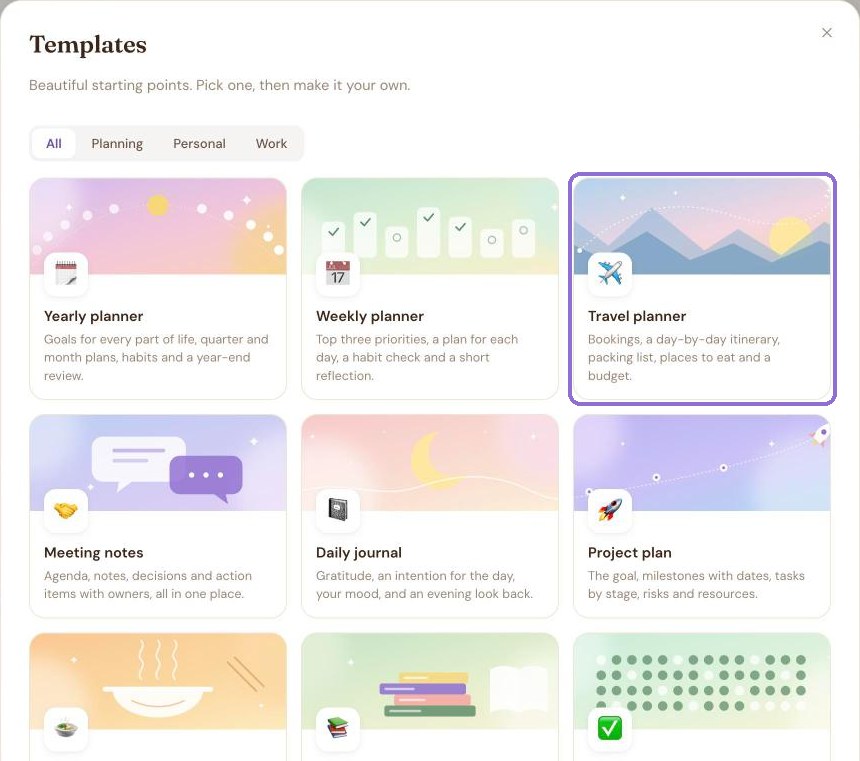
- 🗓️ Yearly planner: goals, quarter and month plans, a year-end review
- 📅 Weekly planner: top three priorities, a plan for each day
- ✈️ Travel planner: bookings, itinerary, packing list, budget
- 🤝 Meeting notes: agenda, decisions, action items with owners
- 📓 Daily journal: gratitude, an intention, mood, an evening look back
- 🚀 Project plan: goal, milestones with dates, tasks, risks
- 🍲 Recipe: servings, an ingredient checklist, steps
- 📚 Reading list: status, ratings, favourite quotes
- ✅ Habit tracker: a week-by-week grid and streaks
- 💰 Monthly budget: income, fixed costs, a month-end check-in
1. Start a new page
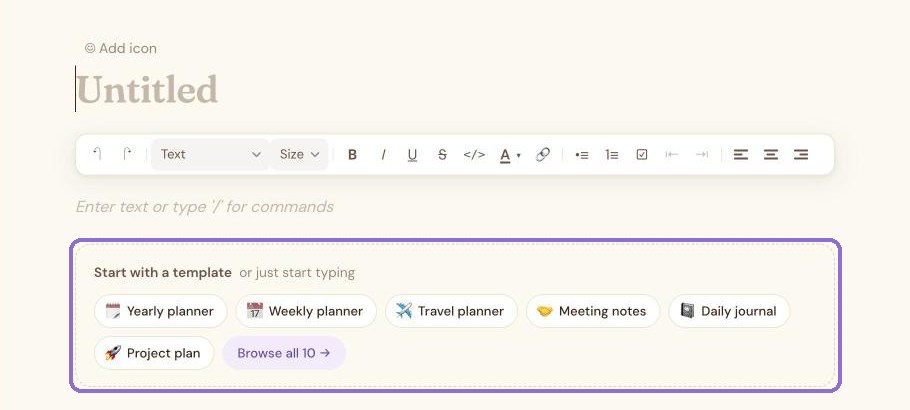
Click New page at the bottom of the sidebar. Under the title, a new, empty page shows Start with a template with the most popular ones. Click one to fill the page right away, or choose Browse all 10 → to see everything.
2. Or open the gallery
You can also open the full gallery any time: click ✨ Templates in the sidebar or on Home, or press ⌘ K (Ctrl K on Windows) and type "templates". Use the Planning, Personal and Work tabs to narrow things down.
3. Preview it, then use it
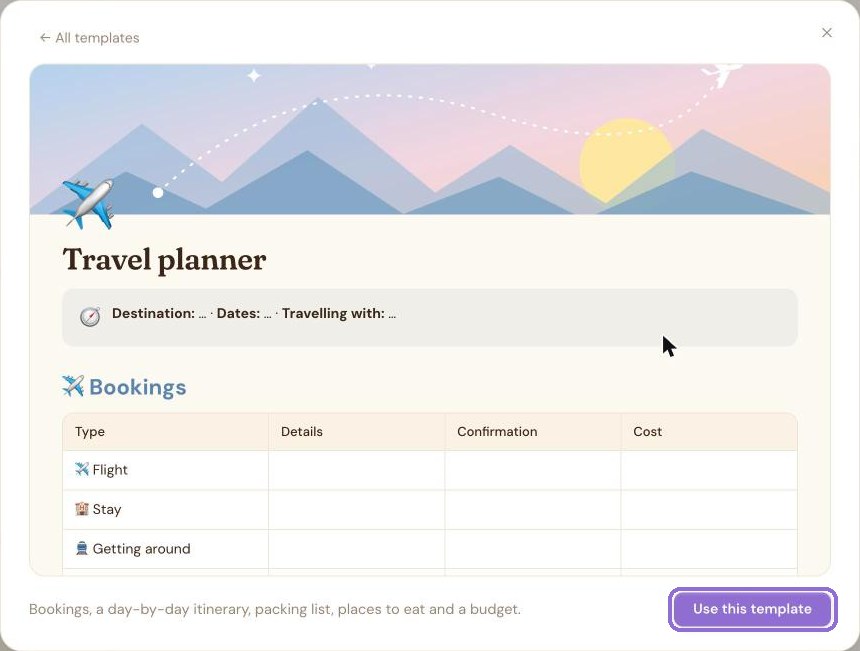
Click any card to preview the whole page before you commit. If it looks right, click Use this template. If not, ← All templates takes you back.
4. Make it yours
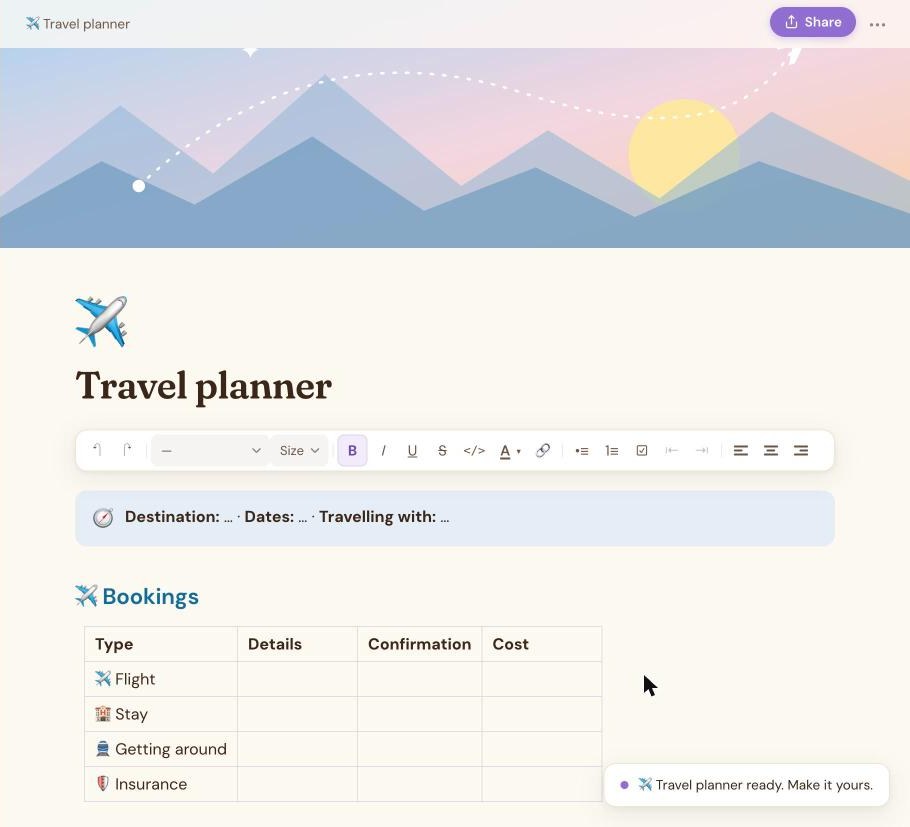
Your new page opens with its cover, icon and sections ready to fill in. It's a normal Snugnote page, so you can edit, move or delete anything in it, rename it, nest it under another page, or add your own sections with / commands.
More new things: speak instead of typing with voice notes, and use your notes with Claude or ChatGPT.