 Snugnote
Use your notes with Claude or ChatGPT
Your AI assistant is a lot more useful when it knows what you know. Snugnote now works as a connector (an MCP server) for Claude, ChatGPT, Claude Code, Cursor and other apps, so you can ask about your notes, or have the assistant save new ones, right from the chat.
An example of what you can ask once Snugnote is connected.
What your assistant can and can't do
- Can: search your notes, read a page, browse your page tree, create new pages, and add to the end of a page.
- Can't: delete anything, or change or remove text you've already written.
- Your notes stay in your own Google Drive or Dropbox. Snugnote passes a note to the assistant only when it asks for one, and doesn't keep a copy.
1. Copy Snugnote's address
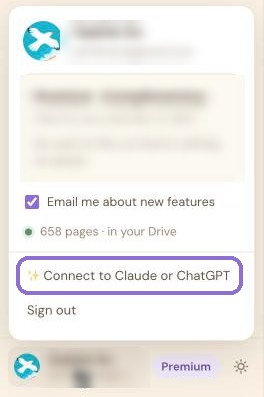
In Snugnote, click your name at the bottom of the sidebar and choose ✨ Connect to Claude or ChatGPT.
Click Copy to copy the address. It's the same for everyone:
https://snugnote.app/mcp
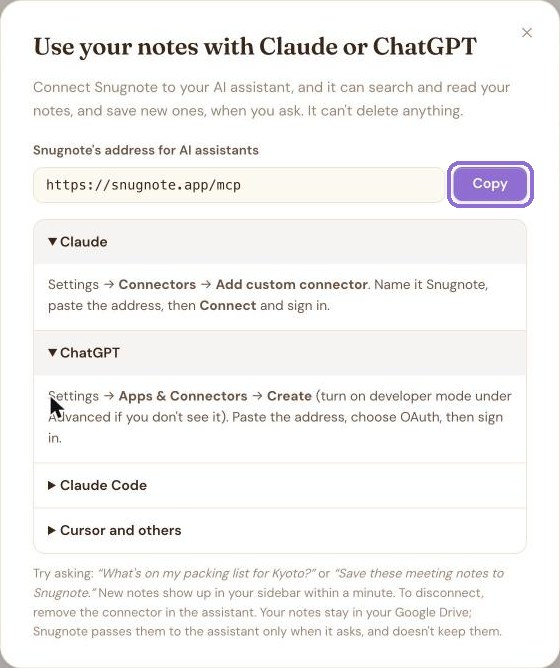
2. Add it to your assistant
Pick the app you use:
Claude (web, desktop and mobile)
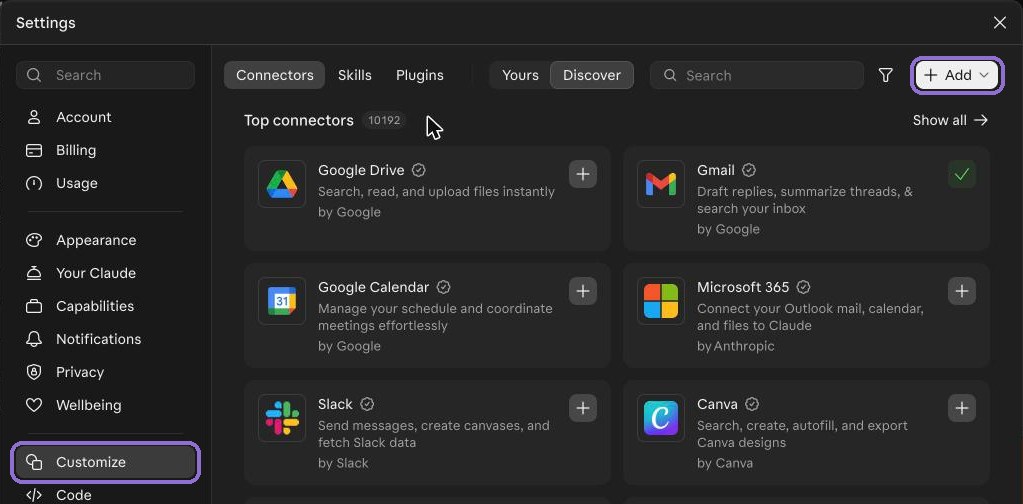
- Open Claude's Settings and go to Customize, then the Connectors tab.
- Click + Add and choose Add custom connector.
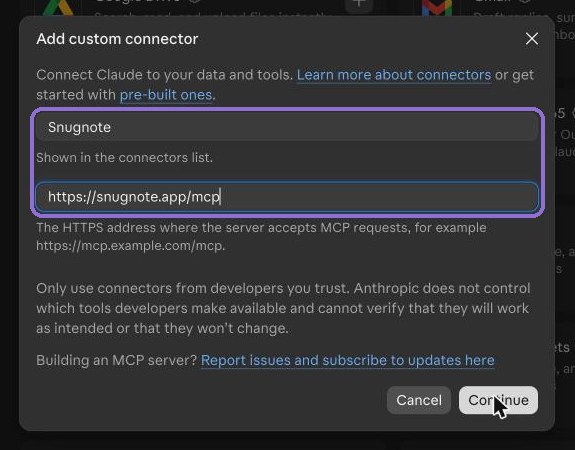
- Name it Snugnote, paste
https://snugnote.app/mcpas the MCP server URL, and click Continue. - Sign in with the same Google or Dropbox account you use for Snugnote, and allow access.
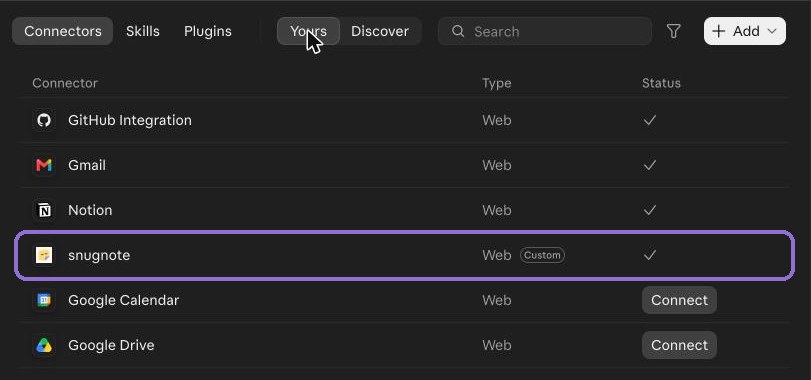
Custom connectors you add on the web also work in the Claude desktop and mobile apps. On Team and Enterprise plans, an owner may need to add the connector for the organization first.
ChatGPT
- Open ChatGPT's Settings and go to Apps & Connectors.
- If you don't see a Create button, turn on Developer mode under Advanced.
- Click Create, paste
https://snugnote.app/mcp, and choose OAuth for authentication. - Sign in with your Snugnote account (Google or Dropbox) and allow access.
Claude Code
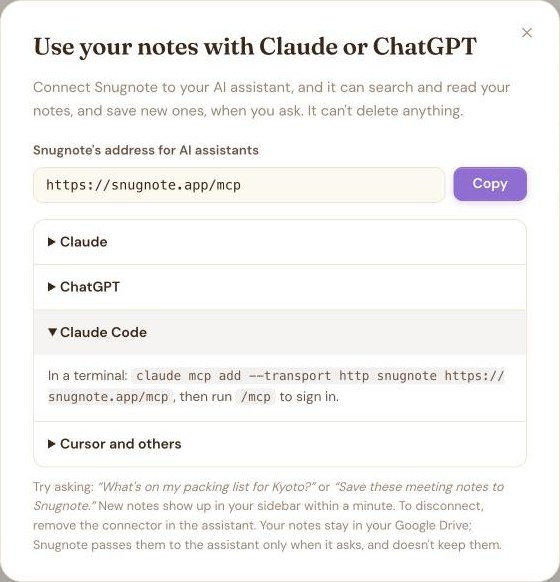
In a terminal, run:
claude mcp add --transport http snugnote https://snugnote.app/mcp
Then start Claude Code, run /mcp, choose snugnote and sign in in the browser window that opens.
Cursor and other apps
Add a remote MCP server with the address https://snugnote.app/mcp. Any app that supports remote MCP servers with sign-in works the same way.
3. Ask away
Start a new chat and try things like:
- "What's on my packing list for Kyoto?"
- "Summarise my meeting notes from this week."
- "Save this recipe to Snugnote under Recipes."
- "Add 'book the dentist' to my To Do List page."
New pages show up in your Snugnote sidebar within a minute.
More new things: start any page from a template, and speak instead of typing with voice notes.